Support
Manuals and Videos
Frequently asked questions
The CD icon means: The Seal One device is connected via USB, but the Seal One application has not yet been launched. Your Seal One device comes with the application pre-installed – it is located on a virtual CD drive and simply needs to be launched. Administrator rights are not required for this.
As soon as the three icons shown here appear on your Seal One device, your Seal One device is ready for use. 
If the CD icon remains on the screen, please follow the instructions below:
- In Windows, open File Explorer (keyboard shortcut + E )
- A new drive called ‘Seal One’ appears there.

Double-click on the CD drive and then double-click on the ‘SealOne’ application.
As soon as the three icons shown opposite appear on your Seal One device, your Seal One device is ready for use.
- Open Finder.
- A new drive called ‘Seal One’ appears there.

Double-click on the CD drive and then double-click on the ‘SealOne’ application.
As soon as the three icons shown opposite appear on your Seal One device, your Seal One device is ready for use.
- Open the file manager.
- A new drive called ‘Seal One’ appears there.

Double-click on the CD drive and then double-click on the ‘SealOne’ application.
As soon as the three icons shown opposite appear on your Seal One device, your Seal One device is ready for use.
There are three typical causes here:
Incorrect cable: Use the micro-USB data cable supplied. You can recognise it by the engraving ‘ES’ next to the USB symbol on both connectors. Charging-only cables will not work.
Arrows flashing: Download the Seal One application from our website and launch it. To Downloads
Firewall / Antivirus: A firewall or security software (e.g. Bitdefender) is blocking the Seal One device’s internet connection. Allow all incoming and outgoing connections in your firewall for the Seal One application.
The device is ready for use when the following symbols are displayed:
In terms of functionality, all devices do the same thing – authorise transactions at the touch of a button. The differences lie mainly in the communication methods (USB/Bluetooth) and the housing:
USB only:
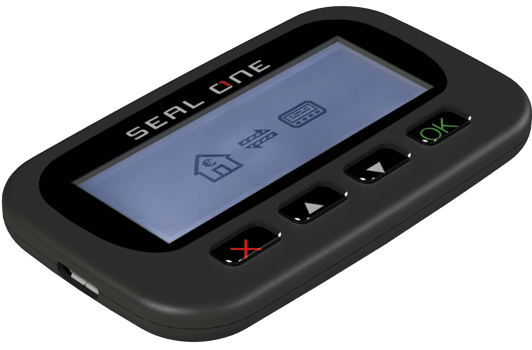
Seal One 2200 – Simply connect to your PC or laptop via USB and launch the Seal One application directly from the device (virtual CD drive).
Important: This model cannot be used with a smartphone or tablet via a USB cable.
USB + Bluetooth:
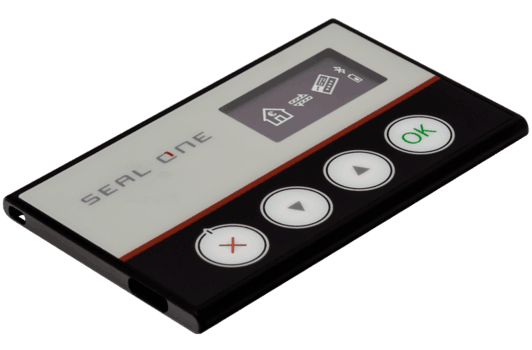
Seal One 7300pro – This device can also be used wirelessly via Bluetooth with a PC/laptop or smartphone/tablet. The device has a built-in rechargeable battery.
Especially for people with visual impairments (USB only):
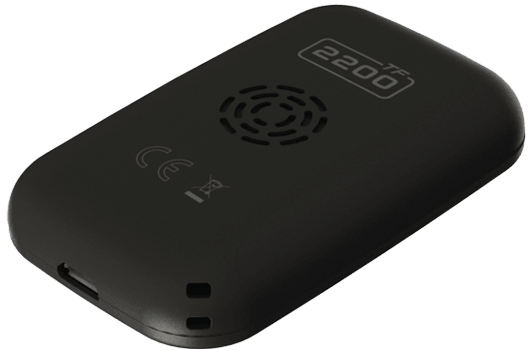
Seal One 2200 TF – In addition to the display, the device has a built-in speaker.
Rule of thumb:
Only on a PC? A simple USB model will do.
On a mobile or wirelessly as well? Then go for the 7300pro.
You can also find a detailed device comparison under Devices → Device Comparison.
You will need the Seal One ID to register your device on your online account.
USB:
Connect your Seal One device using a USB cable and ensure that it is ready for use. Then press and hold the OK button for at least 3 seconds, until the Seal One ID appears on the display.
The Seal One ID consists of 3 blocks of 5 characters each (15 characters in total).
Bluetooth:
Make sure that the Seal One app is running on your smartphone/tablet and that the Seal One 7300pro is paired via Bluetooth using the app. Press and hold the OK button for at least 3 seconds until the Seal One ID appears on the display.
The Seal One ID consists of 3 blocks of 5 characters each (15 characters in total).
Note:
During registration, the Seal One ID must be displayed on your device.
The letters I (as in Ida), M (as in Martha), O (as in Otto) and W (as in Wilhelm) are not used to prevent any confusion.
Seal One devices support all common operating systems – only the connection type varies depending on the model:
PC/Laptop and Mac:
All Seal One devices work via USB here. (Windows, macOS and common Linux operating systems are supported.)
Smartphone/Tablet (Android/iOS):
The only one that works here is the Seal One 7300pro, wirelessly via Bluetooth. No Seal One device can be used via USB, not even with an adapter.
Microsoft Surface (Windows):
All Seal One devices operate via USB here; the Seal One 7300pro also operates wirelessly via Bluetooth.
| Operating system | 7300pro | 2200 | 2200 TF |
|---|---|---|---|
| Windows PC/Laptopincl. Microsoft Surface • Windows 10 and later | USB / Bluetooth* | USB | USB |
| macOSmacOS 10.13 and later | USB / Bluetooth* | USB | USB |
| Linuxcommon distributions | USB / Bluetooth* | USB | USB |
| AndroidAndroid 9 and later | Bluetooth | Not possible | Not possible |
| iOSiOS 13 and later | Bluetooth | Not possible | Not possible |
| Chrome OS | Not possible – Chrome OS does not provide sufficient access to USB and Bluetooth. | ||
* Your PC or laptop must support Bluetooth (Low Energy) – otherwise, connect via USB.
Help and support
Your system administrator can activate the Seal One device based on the USB vendor/product ID. Ensure that the Seal One application can be launched on the relevant PC or laptop. All incoming and outgoing connections for the Seal One application must be permitted in the firewall.
If you have any further questions, please contact our customer service team by email at kundenservice@seal-one.com or by telephone on 069/1301468-52 (Monday to Friday, 9.00 am to 5.00 pm).
All you need to do on your new PC or laptop is launch the Seal One application – no changes to your online banking details are required. Your Seal One device is not tied to any particular PC or laptop and can be used on any computer, as long as the Seal One application is running on it.
If you have any questions about your Seal One device (hardware), you can contact our customer service team by email at kundenservice@seal-one.com or by telephone on 069/1301468-52 (Monday to Friday, 9.00 am to 5.00 pm).
If you have any questions about online banking, please contact your bank’s customer service department directly.
As the Seal One device itself does not contain any security-relevant data, this alone does not pose an increased security risk. Without your login details for the partner’s system, no one has access to your Seal One device. We do, however, recommend that you delete the Seal One device from all partners’ systems or have it blocked.
Questions about banking and registration
You can use your Seal One device at the following banks:
Aareal Bank

Baader Bank

Deutsche Bank

ebase

fintego

finvesto

FNZ

Fyrst

Norisbank

Postbank

Yes, you can use your Seal One device at different banks.
That depends on your bank. To get an answer to this question, please contact your bank’s customer support directly.
You can find detailed instructions on how to register your Seal One device on your bank’s website. If you have any questions about registration, please contact your bank directly.
The general procedure usually follows this sequence:
Connect & get started
The Seal One device is ready for use when the following symbol appears on your device:
Retrieve the Seal One ID
Press the OK button for about 3 seconds until the Seal One ID appears on your device:

Registration / Activation
Enter the Seal One ID on the bank’s website and follow the bank’s instructions:

When using the Seal One 7300pro via Bluetooth:
Ensure that the Seal One app is running on your smartphone/tablet and that the Seal One 7300pro is paired via Bluetooth.
Note:
During registration the Seal One ID must be displayed on your device.
The letters I (as in Ida), M (as in Martha), O (as in Otto) and W (as in Wilhelm) are not used, so as to prevent any confusion.
Each bank decides for itself which security procedures it offers its customers. Unfortunately, we have no influence from the outside as to whether your bank introduces Seal One. If you notice that your bank does not offer Seal One, please do let your bank know – customer feedback plays an important role in the selection process.
Questions about usage and technical matters
To authorise a transaction, all you need to do is press the OK button. There is no need to go through the hassle of entering a TAN. Instead, pressing the OK button creates a strong digital signature for the text displayed for the transaction in question.
Step-by-step guide:
As soon as you initiate a transaction in your online banking (e.g. a bank transfer), the transaction details are sent to your Seal One device and displayed on the screen. Then proceed as follows:
Verify: Check the displayed details carefully. (Example for a bank transfer: The payee, IBAN and amount are shown directly on the device’s display. If the details are too long, scroll through the display if necessary.
Authorize: If all the details match your order, press and hold the OK button for about 1 second. This digitally signs the transaction and confirms it with the bank.
Cancel: If something is wrong, do not authorise the transaction. Instead, press the button with the red X to cancel the order.
No, you can use your Seal One device on any PC or laptop. The only requirement is that the Seal One application is running on it.
You can simply remove the Seal One device from the USB port. It is not necessary to use the “Safely Remove Hardware” function beforehand.
PC/laptop: The Seal One application must be launched on the relevant PC/laptop; the Seal One device uses this to communicate with your bank. Via Bluetooth with a smartphone: For the Seal One 7300pro, the Seal One app must be running on your smartphone; this is used to establish the Bluetooth connection.
To ensure your Seal One device is always up to date, you will be automatically notified of any available updates. We recommend that you always use the latest version and install any updates as they become available.
Before an update is installed on your Seal One device, a message will appear on your computer saying: "There is an update available. Would you like to update now?" Click “Yes” to start the update. Please note that the update process may take a few minutes.
If you wish to carry out the update at a later date, click on “No”. You will be prompted to install the update again at regular intervals. During the update process, the progress will be displayed in the update window. If, in exceptional cases, the update is not completed successfully, you can run it again at any time.
Device-specific information


First, select your device by clicking on it above.
Display
Description

The Seal One device is connected via USB but cannot communicate with the PC/laptop. One possible cause is that the Seal One application has not been launched. Launch the Seal One application (Note: No CD is required to launch the application; it is automatically mounted on a virtual CD drive).
If the app is running and you still see the icon shown, check the micro-USB cable you are using. A micro-USB data cable is required. Some micro-USB cables—such as those included with certain cell phones— are designed solely for charging. These cannot be used. Therefore, it is best to always use the original cable supplied by Seal One.
See also: Quickstart guide – CD symbol

Once you have switched on the device, it will attempt to connect to your (mobile) device via Bluetooth and establish an internet connection via that device. If you have connected the device to your PC or laptop via USB, it will attempt to establish an internet connection via your PC or laptop.
Note: The arrows are flashing.

When the Seal One 7300pro is connected via Bluetooth, a Bluetooth icon appears in the top right-hand corner.

A connection is being established between your Seal One device and the Internet.

The Seal One device is connected to the Internet and ready for use.

The Seal One device is not connected to the Internet. Check to see if, for example, your Internet connection is active. The connection may be blocked by a firewall. Allow all incoming and outgoing Seal One connections.

The battery icon indicates the battery's charge level. To charge the 7300pro, use the included micro-USB data cable.

Seal One 7300pro is connected to the power supply and is being charged.

The Seal One ID is required to log in with an acceptance partner and appears when you press and hold the release button for at least 3 seconds. Once you have logged in, the Seal One device returns to “ready for use” mode. If you want to exit the Seal One ID display without logging in with a partner, press the release button again for at least 3 seconds.

This message indicates an internal device error. Turn off the Seal One device and turn it back on. Note: If this message is still displayed on the device despite the steps taken, please contact us at: kundenservice@seal-one.com

The Seal One 7300pro turns off after a few minutes to extend its battery life.
When using Bluetooth: Turn on the device. If this is not possible, charge it using the included micro-USB data cable.
When using via USB: As soon as a transaction is received in this state, power-saving mode is automatically exited and the transaction is displayed.
| Operating system | Connection type | ||
|---|---|---|---|
| Windows PC/laptopalso Microsoft Surface • Windows 10 and later | USB / Bluetooth* | ||
| macOSmacOS 10.13 and later | USB / Bluetooth* | ||
| Linuxcommon distributions | USB / Bluetooth* | ||
| AndroidAndroid 9 and later | Bluetooth | ||
| iOSiOS 13 and later | Bluetooth | ||
| Chrome OS | Not possible – Chrome OS does not provide sufficient access to USB and Bluetooth. | ||
* Your PC or laptop must support Bluetooth (Low Energy) — otherwise, connect via USB.
PC/Laptop: Connect the Seal One device to your PC/laptop. Click the SO icon in the taskbar, then click “Enlarge View.”
Via Bluetooth with a smartphone: Open the Seal One app and select your device. Go to Settings (gear icon)— there you’ll find the “Enlarge Display” menu item.

Normal display

Enlarged view
Note:
In large single-line displays, the text is displayed as scrolling text. For more information, see the detailed instructions for the Seal One device.
The Seal One 7300pro’s internal battery must be charged regularly (at least every six months) to ensure the device has a long service life – even if you only use it occasionally. You can charge the Seal One 7300pro directly from a PC or laptop. Alternatively, use a CE-compliant 5V USB power supply.
Important: Only use the original Seal One USB cable, which is included in the scope of delivery, for charging.
Yes, you can add multiple Seal One devices in the Seal One app. To do this, once you’ve opened the app, tap ‘+’ in the top right-hand corner and follow the setup wizard.
No, the Seal One app for PRO devices is only available from the official App Store (iOS) and the official Play Store (Android).


Display
Description

If the logo shown here remains on the screen throughout the startup process, the USB port on your PC may be malfunctioning or blocked. In this case, use the included micro-USB cable or try a different USB port on your PC or laptop.
If the Seal One device is being used in a company, please contact your administrator. The administrator can activate the Seal One device based on the USB vendor/product ID.

The Seal One device is connected via USB but cannot communicate with the PC/laptop. One possible cause is that the Seal One application has not been launched. Launch the Seal One application (Note: No CD is required to launch the application; it is automatically mounted on a virtual CD drive).
If the app is running and you still see the icon shown, check the micro-USB cable you are using. A micro-USB data cable is required. Some micro-USB cables—such as those included with certain cell phones— are designed solely for charging. These cannot be used. Therefore, it is best to always use the original cable supplied by Seal One.
See also: Quickstart guide – CD symbol

A connection is being established between your Seal One device and the Internet.
The Seal One device is connected to the Internet and ready for use.

The Seal One device is not connected to the Internet. Check to see if, for example, your Internet connection is active. The connection may be blocked by a firewall. Allow all incoming and outgoing Seal One connections.
The Seal One ID is required to log in with an acceptance partner and appears when you press and hold the release button for at least 3 seconds. Once you have logged in, the Seal One device returns to “ready for use” mode. If you want to exit the Seal One ID display without logging in with a partner, press the release button again for at least 3 seconds.

After a few minutes, the Seal One device switches to power-saving mode to extend its service life. As soon as a transaction arrives while the device is in this state, power-saving mode is automatically disabled and the transaction is displayed.
| Operating system | Connection type | ||
|---|---|---|---|
| Windows-PC/Laptopalso Microsoft Surface • Windows 10 and later | USB | ||
| macOSmacOS 10.13 and later | USB | ||
| Linuxcommon distributions | USB | ||
| AndroidAndroid 9 and later | Not possible | ||
| iOSiOS 13 and later | Not possible | ||
| Chrome OS | Not possible – Chrome OS does not provide sufficient access to USB and Bluetooth. | ||
PC/Laptop: Connect the Seal One device to your PC/laptop. Click the SO icon in the taskbar, then click “Enlarge View.”

Normal display

Enlarged view
Note:
In large single-line displays, the text is displayed as scrolling text. For more information, see the detailed instructions for the Seal One device.
No, the Seal One device can only be used with a computer via USB; it cannot be used with a smartphone via a cable.
The Seal One 2200 does not have a battery; it draws its low power consumption via the USB cable.
Display
Description
If the logo shown here remains on the screen throughout the startup process, the USB port on your PC may be malfunctioning or blocked. In this case, use the included micro-USB cable or try a different USB port on your PC or laptop.
If the Seal One device is being used in a company, please contact your administrator. The administrator can activate the Seal One device based on the USB vendor/product ID.
Voice output: „Seal One wartet auf Applikationsstart“
The Seal One device is connected via USB but cannot communicate with the PC/laptop. One possible cause is that the Seal One application has not been launched. Launch the Seal One application (Note: No CD is required to launch the application; it is automatically mounted on a virtual CD drive).
If the app is running and you still see the icon shown, check the micro-USB cable you are using. A micro-USB data cable is required. Some micro-USB cables—such as those included with certain cell phones— are designed solely for charging. These cannot be used. Therefore, it is best to always use the original cable supplied by Seal One.
See also: Quickstart guide – CD symbol
Voice output: „Seal One Verbindung wird hergestellt“
A connection is being established between your Seal One device and the Internet.
Voice output: „Seal One verbunden“
The Seal One device is connected to the Internet and ready for use.
Voice output: „Seal One Verbindung getrennt“
The Seal One device is not connected to the Internet. Check to see if, for example, your Internet connection is active. The connection may be blocked by a firewall. Allow all incoming and outgoing Seal One connections.
Voice output: „Seal One Registrierung Seal One ID 123G1 1G1G1 1G1GH“
The Seal One ID is required to log in with an acceptance partner and appears when you press and hold the release button for at least 3 seconds. Once you have logged in, the Seal One device returns to “ready for use” mode. If you want to exit the Seal One ID display without logging in with a partner, press the release button again for at least 3 seconds.
After a few minutes, the Seal One 2200 TF switches to power-saving mode to extend its service life. As soon as a transaction is received whilst in this state, the power-saving mode is automatically terminated and the transaction is displayed and announced audibly.
| Operating system | Connection type | ||
|---|---|---|---|
| Windows-PC/Laptopalso Microsoft Surface • Windows 10 and later | USB | ||
| macOSmacOS 10.13 and later | USB | ||
| Linuxcommon distributions | USB | ||
| AndroidAndroid 9 and later | Not possible | ||
| iOSiOS 13 and later | Not possible | ||
| Chrome OS | Not possible – Chrome OS does not provide sufficient access to USB and Bluetooth. | ||
You can find the user guide for the device, which is suitable for use with a screen-reading system, for people with severe visual impairments here:
PC/Laptop: Connect the Seal One device to your PC/laptop. Click the SO icon in the taskbar, then click “Enlarge View.”
Normal display
Enlarged view
Note:
In large single-line displays, the text is displayed as scrolling text. For more information, see the detailed instructions for the Seal One device.
The Seal One 2200 TF is connected via USB but cannot communicate with the PC/laptop. One possible cause is that the Seal One application has not been launched. Launch the Seal One application (Note: No CD is required to launch the application; it is automatically made available on a virtual CD drive).
If the application has started but you still see the icon shown or the message ‘Seal One is waiting for the application to start’ is displayed, check the micro-USB cable you are using. The device requires a micro-USB data cable. Some micro-USB cables, such as those supplied with certain mobile phones, are in fact charging cables only. These cannot be used. You should therefore ideally always use the original cable supplied by Seal One.
See also: Quick Start Guide – CD icon
No, the voice output cannot be disabled and the volume cannot be adjusted.
No, the voice output is only available in German.
Display
Description

If the logo shown here remains on the screen throughout the startup process, the USB port on your PC may be malfunctioning or blocked. In this case, use the included micro-USB cable or try a different USB port on your PC or laptop.
If the Seal One device is being used in a company, please contact your administrator. The administrator can activate the Seal One device based on the USB vendor/product ID.

The Seal One device is connected via USB but cannot communicate with the PC/laptop. One possible cause is that the Seal One application has not been launched. Launch the Seal One application (Note: No CD is required to launch the application; it is automatically mounted on a virtual CD drive).
If the app is running and you still see the icon shown, check the micro-USB cable you are using. A micro-USB data cable is required. Some micro-USB cables—such as those included with certain cell phones— are designed solely for charging. These cannot be used. Therefore, it is best to always use the original cable supplied by Seal One.
See also: Quickstart guide – CD symbol

A connection is being established between your Seal One device and the Internet.

The Seal One device is connected to the Internet and ready for use.

The Seal One device is not connected to the Internet. Check to see if, for example, your Internet connection is active. The connection may be blocked by a firewall. Allow all incoming and outgoing Seal One connections.

The Seal One ID is required to log in with an acceptance partner and appears when you press and hold the release button for at least 3 seconds. Once you have logged in, the Seal One device returns to “ready for use” mode. If you want to exit the Seal One ID display without logging in with a partner, press the release button again for at least 3 seconds.

After a few minutes, the Seal One device switches to power-saving mode to extend its service life. As soon as a transaction arrives while the device is in this state, power-saving mode is automatically disabled and the transaction is displayed.
PC/laptop: Connect the Seal One device to your PC/laptop. Click on the SO icon in the taskbar and then on ‘Enlarge display’.
Note:
In large single-line display mode, the text is shown as a scrolling message. Further information on this can be found in the detailed instructions for the Seal One device.
No, the Seal One device can only be used with a computer via USB; it cannot be used with a smartphone via a cable.
Connect the Seal One device to your PC or laptop. Click on the SO-icon in the taskbar and then click on ‘Rotate display’.
Display
Description
If the logo shown here remains on the screen throughout the startup process, the USB port on your PC may be malfunctioning or blocked. In this case, use the included micro-USB cable or try a different USB port on your PC or laptop.
If the Seal One device is being used in a company, please contact your administrator. The administrator can activate the Seal One device based on the USB vendor/product ID.
The Seal One device is connected via USB but cannot communicate with the PC/laptop. One possible cause is that the Seal One application has not been launched. Launch the Seal One application (Note: No CD is required to launch the application; it is automatically mounted on a virtual CD drive).
If the app is running and you still see the icon shown, check the micro-USB cable you are using. A micro-USB data cable is required. Some micro-USB cables—such as those included with certain cell phones— are designed solely for charging. These cannot be used. Therefore, it is best to always use the original cable supplied by Seal One.
See also: Quickstart guide – CD symbol
A connection is being established between your Seal One device and the Internet.
The Seal One device is connected to the Internet and ready for use.
The Seal One device is not connected to the Internet. Check to see if, for example, your Internet connection is active. The connection may be blocked by a firewall. Allow all incoming and outgoing Seal One connections.
The Seal One ID is required to log in with an acceptance partner and appears when you press and hold the release button for at least 3 seconds. Once you have logged in, the Seal One device returns to “ready for use” mode. If you want to exit the Seal One ID display without logging in with a partner, press the release button again for at least 3 seconds.
After a few minutes, the Seal One device switches to power-saving mode to extend its service life. As soon as a transaction arrives while the device is in this state, power-saving mode is automatically disabled and the transaction is displayed.
PC/laptop: Connect the Seal One device to your PC/laptop. Click on the SO icon in the taskbar and then on ‘Enlarge display’.
Note:
In large single-line display mode, the text is shown as a scrolling message. Further information on this can be found in the detailed instructions for the Seal One device.
No, the Seal One device can only be used with a computer via USB; it cannot be used with a smartphone via a cable.
Connect the Seal One device to your PC or laptop. Click on the SO-icon in the taskbar and then click on ‘Rotate display’.
Display
Description
If the logo shown here remains on the screen throughout the startup process, the USB port on your PC may be malfunctioning or blocked. In this case, use the included micro-USB cable or try a different USB port on your PC or laptop.
If the Seal One device is being used in a company, please contact your administrator. The administrator can activate the Seal One device based on the USB vendor/product ID.
The Seal One device is connected via USB but cannot communicate with the PC/laptop. One possible cause is that the Seal One application has not been launched. Launch the Seal One application (Note: No CD is required to launch the application; it is automatically mounted on a virtual CD drive).
If the app is running and you still see the icon shown, check the micro-USB cable you are using. A micro-USB data cable is required. Some micro-USB cables—such as those included with certain cell phones— are designed solely for charging. These cannot be used. Therefore, it is best to always use the original cable supplied by Seal One.
See also: Quickstart guide – CD symbol
A connection is being established between your Seal One device and the Internet.
The Seal One device is connected to the Internet and ready for use.
The Seal One device is not connected to the Internet. Check to see if, for example, your Internet connection is active. The connection may be blocked by a firewall. Allow all incoming and outgoing Seal One connections.
The Seal One ID is required to log in with an acceptance partner and appears when you press and hold the release button for at least 3 seconds. Once you have logged in, the Seal One device returns to “ready for use” mode. If you want to exit the Seal One ID display without logging in with a partner, press the release button again for at least 3 seconds.
After a few minutes, the Seal One device switches to power-saving mode to extend its service life. As soon as a transaction arrives while the device is in this state, power-saving mode is automatically disabled and the transaction is displayed.
PC/laptop: Connect the Seal One device to your PC/laptop. Click on the SO icon in the taskbar and then on ‘Enlarge display’.
Note:
In large single-line display mode, the text is shown as a scrolling message. Further information on this can be found in the detailed instructions for the Seal One device.
No, the Seal One device can only be used with a computer via USB; it cannot be used with a smartphone via a cable.
Connect the Seal One device to your PC or laptop. Click on the SO-icon in the taskbar and then click on ‘Rotate display’.
The user guide for the device, suitable for use with a text-to-speech system for people with severe visual impairments, can be found here:
Display
Description

Once you have switched on the device, it will attempt to connect to your (mobile) device via Bluetooth and establish an internet connection via that device. If you have connected the device to your PC or laptop via USB, it will attempt to establish an internet connection via your PC or laptop.
Note: The arrows are flashing.

When the Seal One 8300pro is connected via Bluetooth, a Bluetooth icon appears in the top right-hand corner.

A connection is being established between your Seal One device and the Internet.

The Seal One device is connected to the Internet and ready for use.

The Seal One device is not connected to the Internet. Check to see if, for example, your Internet connection is active. The connection may be blocked by a firewall. Allow all incoming and outgoing Seal One connections.

The battery icon shows the battery charge level. To charge the Seal One device, use the cradle supplied.

Seal One 8300pro is connected to the power supply and is being charged.

The Seal One ID is required to log in with an acceptance partner and appears when you press and hold the release button for at least 3 seconds. Once you have logged in, the Seal One device returns to “ready for use” mode. If you want to exit the Seal One ID display without logging in with a partner, press the release button again for at least 3 seconds.

This message indicates an internal device error. Turn off the Seal One device and turn it back on. Note: If this message is still displayed on the device despite the steps taken, please contact us at: kundenservice@seal-one.com

The Seal One 8300pro turns off after a few minutes to extend its battery life.
When using Bluetooth: Turn on the device. If this is not possible, charge it using the included cradle.
When using via USB: As soon as a transaction is received in this state, power-saving mode is automatically exited and the transaction is displayed.
| Operating system | Connection type | ||
|---|---|---|---|
| Windows PC/laptopalso Microsoft Surface • Windows 10 and later | USB / Bluetooth* | ||
| macOSmacOS 10.13 and later | USB / Bluetooth* | ||
| Linuxcommon distributions | USB / Bluetooth* | ||
| AndroidAndroid 9 and later | Bluetooth | ||
| iOSiOS 13 and later | Bluetooth | ||
| Chrome OS | Not possible – Chrome OS does not provide sufficient access to USB and Bluetooth. | ||
* Your PC or laptop must support Bluetooth (Low Energy) — otherwise, connect via USB.
PC/laptop: Connect the Seal One device to your PC/laptop. Click on the SO icon in the taskbar and then click on ‘Enlarge display’.
Via Bluetooth with a smartphone: Open the Seal One app and select your device. Go to Settings (cog icon) – there you will find the menu option ‘Enlarge display’.
Note:
When displayed as a large single line, the text appears as scrolling text. Further information on this can be found in the detailed user guide for the Seal One device.
The Seal One 8300pro’s internal battery must be charged regularly (at least every six months) to ensure the device has a long service life – even if you rarely use it. You can charge the Seal One 8300pro directly from a PC or laptop. Alternatively, use a CE-compliant 5V USB power supply.
Important: Only use the original Seal One USB cable, which is included in the pack, for charging.
Yes, you can add multiple Seal One devices in the Seal One app. To do this, once you’ve opened the app, tap ‘+’ in the top right-hand corner and follow the setup wizard.
No, the Seal One app for PRO devices is only available from the official App Store (iOS) and the official Play Store (Android).